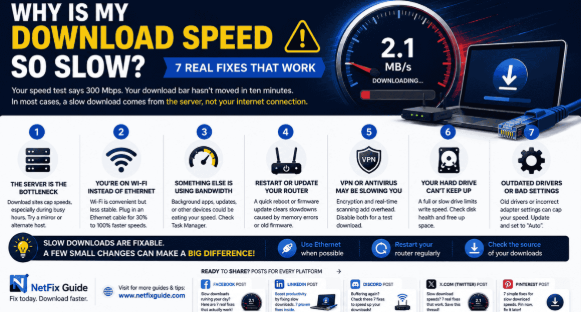
Your speed test says 300 Mbps, but your download bar has not moved in ten minutes. That gap is frustrating, especially when you are paying for a fast internet plan.
Before you contact your internet provider, remember this: a slow file transfer does not always mean your internet connection is broken. The download server, Wi-Fi network, background applications, VPN, antivirus software, or hard drive may be the real bottleneck.
Download Speed vs. Internet Speed: Why They Do Not Match
An internet speed test and a real file transfer do not measure exactly the same thing. Services such as Speedtest.net usually open multiple connections to a nearby server designed to handle heavy traffic. This shows the maximum capacity of your connection rather than the speed of one particular download.
Most speed tests also run for a short, fixed period. That is enough to show peak performance but may not reveal a server that becomes slower during a long transfer.
A normal file download works differently. Your browser or application may use only one or two connections to a server located in another country. That server may have its own bandwidth limits, so your download can be slow even when your internet connection is fast.
Think of it this way: your internet connection may be a ten-lane highway, but if the delivery truck is limited to 30 miles per hour, the package will still arrive slowly. A download manager that opens multiple connections to the same file may transfer it faster than a browser using only one connection.
Check how long your file should take to finish with our Download Time Calculator.
The Real Reasons Your Download Speed Is So Slow
If your download speed is slow even though your internet speed test is fast, one of the following issues is usually responsible.
1. The Server Is the Bottleneck, Not You
Many file-hosting websites limit the download speed available to each user, especially during busy hours. You may download a game update at 25 MB/s late at night but receive only 2 MB/s during the evening.
If slow downloads happen only with one website or application, the server is probably the cause. Try downloading the same file from a mirror or alternate host if one is available. A major speed improvement from another source strongly suggests that the original server is limiting the transfer.
2. You Are Downloading Over Wi-Fi Instead of Ethernet
Wi-Fi bandwidth is shared with every device connected to your network. Signal strength can also weaken because of walls, floors, distance, and interference from nearby networks.
Connect your computer directly to the router with an Ethernet cable and test the download again. If the speed improves significantly, move closer to the router, use the 5 GHz or 6 GHz Wi-Fi band when available, or improve your wireless coverage with a mesh system.
3. Something Else Is Using Your Bandwidth
Cloud backups, game launchers, smart televisions, mobile devices, and system updates can consume bandwidth in the background. Windows Update and game consoles may begin downloading automatically without displaying an obvious notification.
Open Task Manager on Windows or Activity Monitor on macOS while the download is running. Check which applications are using network resources and pause anything that is not necessary.
4. Your Router Needs a Restart or Firmware Update
Routers can develop stale connections or temporary memory problems after running continuously for long periods. Restarting the router often clears these issues.
Unplug the router for approximately 30 seconds, plug it back in, and wait a few minutes for the connection to return. You should also check the router's mobile application or administration panel for a firmware update.
5. A VPN or Antivirus Scan Is Slowing the Transfer
A VPN encrypts and reroutes your traffic, which can reduce performance when the VPN server is distant or overloaded. Antivirus software may also scan files while they are being written to your drive.
Temporarily test the same download with your VPN disabled. If necessary, test with real-time antivirus scanning disabled as well. Re-enable security software immediately after testing, and avoid downloading files from untrusted sources.
6. Your Hard Drive Cannot Keep Up
Every downloaded file must be written to storage. A nearly full, aging, or damaged drive may write data more slowly than your internet connection can provide it.
This problem is especially common with external drives, older laptops, and drives affected by power-saving settings or depleted write cache. If downloads are slow only when saved to one particular drive, storage is likely the problem.
Use Windows Resource Monitor or macOS Activity Monitor to check disk activity and write speed during the download.
7. Your Network Drivers or Adapter Settings Are Outdated
An outdated or corrupted network adapter driver can reduce transfer speeds even when the connection shows full signal strength.
Update the driver from your computer or network adapter manufacturer's website. If you use Ethernet, check that the adapter's speed and duplex setting is configured as Auto Negotiation or Auto, rather than being locked to an outdated value.
8. Your ISP Is Throttling or the Network Is Congested
Internet providers may slow certain types of traffic during busy periods or after you exceed a data allowance. Congestion on the provider's network can create similar symptoms.
Compare a speed test with your VPN enabled and disabled. If the VPN result is consistently faster, traffic shaping or throttling may be involved. You should also check your provider's application for data-cap information.
Quick Diagnosis: Match Your Symptom to the Cause
| Symptom | Likely Cause | Fastest Fix |
|---|---|---|
| Speed test shows more than 200 Mbps, but one website or application is slow. | Server-side speed limit. | Try a mirror or download the file at a different time. |
| All downloads are slow, but only over Wi-Fi. | Weak signal or wireless interference. | Switch to Ethernet or move closer to the router. |
| Speed drops immediately after connecting to a VPN. | VPN overhead or an overloaded VPN server. | Test the same download with the VPN disabled. |
| The download starts quickly and then slows to a crawl. | Router strain, server limits, or ISP congestion. | Restart the router and test again at a different time. |
| Only one device on your network downloads slowly. | Local driver, adapter, application, or disk issue. | Update drivers and check Task Manager for network or disk spikes. |
Estimate your expected download duration instantly using our Download Time Calculator.
If every device and every website is slow at the same time, the problem is more likely to involve your router, ISP, or internet plan than a single application.
7 Fixes for Slow Download Speeds
- Confirm that it is really a transfer problem. Run a speed test, then download a large file from a reliable source, such as an official Windows or Ubuntu installer. A large difference between the two results points to the download source or your local setup.
- Switch to Ethernet or move closer to the router. This is one of the fastest ways to determine whether Wi-Fi is responsible for the slowdown.
- Restart your router and check for firmware updates. Unplug the router for 30 seconds, reconnect it, and wait until the connection is fully restored before testing again.
- Free up bandwidth. Pause cloud backups, close streaming applications, stop game launcher downloads, and check whether another device is using the network.
- Test without your VPN or antivirus running. Disable one service at a time and repeat the download to identify which service is affecting performance.
- Check your disk, drivers, and adapter settings. Update the network adapter driver, confirm that speed and duplex are set to Auto, and avoid saving downloads to a nearly full or slow drive.
-
Change your DNS or contact your ISP.
You can test a public DNS service such as
1.1.1.1or8.8.8.8. If downloads remain slow on every device and at every hour, ask your provider about congestion, throttling, or data-cap restrictions.
Frequently Asked Questions
Why are my download speeds so slow on a PC specifically?
On a PC, the most common causes are background applications, outdated network drivers, incorrect adapter settings, or a slow storage drive. Open Task Manager during a download to see whether another process is using your network, processor, or disk.
My speed test is fast, but downloads are still slow. Why?
A speed test uses multiple connections to a nearby, high-capacity server. A regular download may use one connection to a distant server that has its own bandwidth limit. Therefore, a fast speed test does not guarantee that every file will download at the same rate.
What counts as a slow download speed in 2026?
A download may be considered slow when it is far below the speed promised by your internet plan, especially if the same problem affects multiple websites and devices. However, there is no single slow-speed threshold because the expected rate depends on your plan, location, server, network conditions, and file size.
You can check current global speed benchmarks using the official Speedtest Global Index.
Can a VPN really slow down downloads?
Yes. A VPN encrypts your traffic and routes it through another server. If that server is far away, overloaded, or limited by the VPN provider, downloads may become noticeably slower.
Can closing background applications improve download speed?
Often, yes. Cloud backup tools, game launchers, system updates, and streaming applications can consume bandwidth without being immediately visible. Pausing them can free more capacity for the download.
Why do Steam or game downloads crawl even with fast internet?
Game platforms may limit per-user download speeds to manage server capacity. Local factors such as disk write speed, storage space, power settings, and other downloads can also reduce the displayed speed.
Final Thoughts
If your download speed is slow even though your internet plan is fast, the cause is usually a specific and fixable bottleneck rather than a broken connection. The download server, Wi-Fi signal, background applications, VPN, storage drive, or network settings can all limit performance.
Start with the quickest checks: switch from Wi-Fi to Ethernet, pause background downloads, and test without your VPN. If downloads remain slow on every device, every website, and at every hour, contact your ISP with speed-test results and download comparisons.