Can My PC Run It? Can I Run Any Game on My PC (4 Easy Ways)
You find a game you want to buy. Then the doubt hits: can my PC run it, or will it crash on launch? Can my computer play it at a decent frame rate, or will it stutter through every fight? Would my computer run it at all? These are fair questions. Buying a game your PC can't handle wastes money and time. This guide gives you 4 free ways to check before you spend a single dollar. Check your expected FPS right now with our FPS Calculator.
What "Can My PC Run It" Actually Means
Every game on Steam or Epic lists two spec tiers minimum and recommended. Most people ignore the difference. That's a mistake. Minimum means the game launches. It does not mean the game runs well. You will get choppy gameplay, low settings, and frustrating frame drops at minimum specs.Recommended means the developers tested smooth gameplay at those specs. This is the tier you actually want to hit. Here is what each level means for your real experience:
Gaming Specs vs Expected FPS
| Spec Level | What It Means | Expected FPS |
|---|---|---|
| Below Minimum | Game may not launch | Under 20 (Unplayable) |
| Meets Minimum | Game runs, barely | 20–35 FPS (Low settings) |
| Meets Recommended | Smooth gameplay | 60 FPS (Medium–High settings) |
| Above Recommended | High performance | 100+ FPS (Max settings) |
The most important takeaway: passing the minimum is not enough. If you want to actually enjoy a game, aim for recommended specs or above.
Step 1 — Find Your PC Specs (30 Seconds)
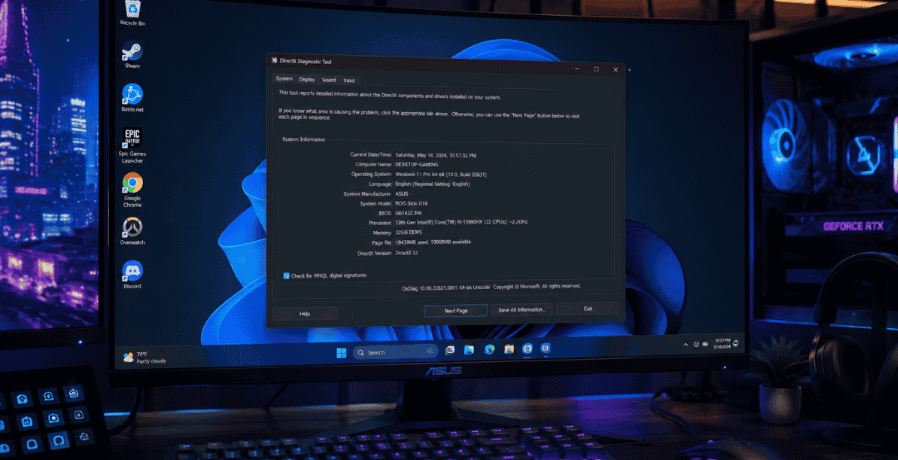
First, you need your hardware specs before any tool can tell you if your PC can run a game. You can find them in under 30 seconds on any Windows PC. Just press Win + R and type dxdiag now hit Enter. This opens the DirectX Diagnostic Tool, the quickest built-in method to check your hardware. Here is exactly what to note down:
PC Specifications Reference
| Spec | Where to Find It | Example |
|---|---|---|
| CPU | System tab → Processor | Intel Core i5-12400 |
| RAM | System tab → Memory | 16384 MB (16 GB) |
| GPU | Display tab → Name | NVIDIA GeForce RTX 3060 |
| VRAM | Display tab → Approx. Total Memory | 12 GB |
| OS | System tab → Operating System | Windows 11 64-bit |
Take a screenshot or write these down. You will need them for every method in this guide.Alternative method: Press Win + R, type msinfo32, and hit Enter. This gives you the same information in one place without switching tabs.
Step 2 — Check the Game's Official Requirements
Every game publishes its system requirements before launch. This is the manual way to answer can my PC run without any tools . You do not need any tool for this step, just the store page. On Steam: Open the game store page and scroll to the bottom. You will see minimum and recommended requirements listed side by side. On Epic Games Store: Open the game page and scroll down to "Minimum Specs." Epic lists requirements in a single column, so check both tiers carefully. On the game website: Search the game name plus "PC requirements." Developers publish the most up to date specs here more reliable than third-party sites. Now compare each spec against what you wrote down in Step 1. Go through them in this order: 1.GPU : most important, check this first 2.CPU : second most impactful 3.RAM : easy to check, easy to upgrade 4.Storage : SSD vs HDD matters for load times, not FPS 5.OS : Windows 10 or 11, 64-bit only for most modern games The VRAM trap most people miss: Your GPU might meet the requirement on paper but fail on VRAM. A GTX 1060 3GB and GTX 1060 6GB have the same GPU name but the 3GB version will stutter badly in games that need 6GB VRAM. Always check VRAM separately, not just the GPU model name.
Step 3 — Can My PC Run It on Steam? (Built-in Check)
Steam comes with its own compatibility check, no extra installation needed. It runs automatically when you open a game’s store page. If your PC is lacking, a yellow warning bar appears. This alert is right above the "Add to Cart" button. It tells you if your computer meets the minimum game requirements or not, showing a message like “Your computer doesn’t meet the minimum needs for this game.”
How to Read the Warning Correctly:
- No warning shown — Your PC meets minimum requirements. The game will launch, but check the FPS table from Step 1 to know how well it will actually run.
- Yellow warning appears — Your PC is below minimum. The game may crash, refuse to launch, or run under 20 FPS even on lowest settings.
- Green checkmark shown — Your PC meets recommended specs. Expect smooth gameplay at medium to high settings.
Important Limitation:
Steam's check is pass/fail only. It tells you whether your PC clears the bar — not how far above or below it you are. A PC with an RTX 4090 and a PC with a GTX 1060 both get the same green checkmark on Skyrim.
For a real FPS estimate beyond Steam's pass/fail result, use our FPS Calculator, enter your GPU and see exactly what frame rate to expect.
Use a Free Checker Tool
If you want the fastest answer to “Can my PC run it?”, free checker tools do the work for you. You enter your specs, pick a game, and get an instant pass or fail result.
Here are the three most reliable options:
| Tool | Best For | Download Required? | Shows FPS Data? |
|---|---|---|---|
| Can You Run It (CYRI) | Quick pass/fail on any game | Yes — small scan app | No |
| IOBit Can I Run It | Auto hardware detection, no manual input | No | No |
| Technical.city | Pass/fail plus actual FPS estimates | No | Yes |
How to use Can You Run It
Go to systemrequirementslab.com, search your game, and download the small detection app. It scans your hardware and returns a pass/fail result in under a minute.
How to use Technical.city
No download needed. Enter your GPU and CPU manually, select your game, and get both a compatibility result and an estimated FPS range.
One thing all three tools share: they give you a yes or no. None of them tell you whether that "yes" means 35 FPS or 90 FPS on your specific hardware.
That gap is exactly what our FPS Calculator fills — enter your GPU, pick your game, and get a real frame rate estimate before you spend any money.
My PC Failed the Check — What Now?
If the can my PC run it check fails, that does not always mean you need new hardware. Start with the quick fixes first; they cost nothing and can push you over the minimum line in some cases. Here is what to do based on which spec failed:
Step 5 — Fixing Performance Issues
When your PC fails a spec check, you can try quick free fixes first. If those don’t help enough, consider long‑term hardware or software upgrades. Here’s a breakdown:
| Spec That Failed | Quick Fix (Free) | Long-Term Fix |
|---|---|---|
| GPU below minimum | Lower resolution, reduce graphics settings | Upgrade to a stronger graphics card |
| VRAM too low | Lower texture quality | Upgrade GPU with more VRAM |
| RAM under 8GB | Close background apps | Add more RAM sticks |
| CPU too slow | Set Windows to High Performance mode | Upgrade to a faster processor |
| Storage is HDD | Defragment drive, free up space | Upgrade to SSD for faster load times |
| OS outdated | Install latest updates | Reinstall or upgrade to latest Windows version |
Two Rules to Follow Before Spending Any Money
-
Update your GPU drivers first.
Outdated drivers cause more performance problems than most people realize. Download directly from NVIDIA or AMD, not third-party sites.
-
GPU is the right upgrade in most cases.
If your CPU, RAM, and storage are fine but your GPU fails, a GPU upgrade fixes the problem cleanly. Upgrading the CPU without checking socket compatibility wastes money.
Laptops and Integrated Graphics — Special Rules
When you ask can my PC run it on a laptop, checker tools and store pages compare your GPU name . On a laptop, that comparison is often misleading.A desktop RTX 3060 and a laptop RTX 3060 share the same name. But the laptop version runs 25–40% slower due to lower power limits and thermal restrictions. You can pass a requirements check on paper and still get unplayable performance in the actual game. Here is what to check if you are on a laptop:
Look for "Laptop" or "Max-Q" in your GPU name.
Open dxdiag and check the Display tab. If your GPU says "RTX 3060 Laptop GPU" or "RTX 3060 Max-Q," treat it as a lower-tier card when comparing against desktop requirements.
Check your TDP wattage if possible.
Higher wattage means better performance headroom. A 115W RTX 3060 laptop GPU performs significantly better than an 80W version — even though both carry the same name.
Integrated graphics (Intel Iris, AMD Radeon integrated) follow a different rule entirely.
Most modern games will not run well on integrated graphics. You can expect under 30 FPS on low settings in any title released after 2020 — and many games will refuse to launch at all.
FAQ’s
Q1: Can my PC run it without downloading anything?
Yes, use Steam's store page or Technical.city in your browser. Both check compatibility instantly with no install required.
Q2: Can my PC run Arc Raiders?
| Tier | CPU | GPU | RAM |
|---|---|---|---|
| Minimum | i5-6600K / Ryzen R5 1600 | GTX 1050 Ti / RX 580 | 12 GB |
| Recommended | i5-9600K / Ryzen 5 3600 | RTX 2070 / RX 5700 XT | 16 GB |
Q5: What happens if I only meet minimum requirements?
You get 20 to35 FPS at lowest settings playable but not enjoyable. Aim for recommended specs for a smooth experience.
Q6: Is 8 GB RAM enough for gaming in 2025?
Most 2025 titles list 16 GB as minimum at 8 GB expect stutters and frame drops. Upgrade to 16 GB for smooth gameplay.
Q7: Can I run games on integrated graphics?
Lightweight older games run fine; most modern titles released after 2020 will not. Expect under 30 FPS or no launch at all.
CONCLUSION (60–80 words)
Can my PC run it? The answer is not just yes or no. It depends on how far above or below the minimum you are. Use the steps in this guide to check your specs, compare against requirements, and get a real FPS estimate before you buy. If your PC fails the check, try the quick fixes or consider an upgrade. With the right tools, you can avoid wasted money and enjoy smooth gaming.
Checking whether my PC can run takes four simple steps: find your specs, compare requirements, use a free checker tool, and verify your expected FPS before you spend any money. Passing minimum requirements only means the game launches—it does not guarantee smooth or enjoyable gameplay at a decent frame rate.