FPS vs Hz: 7 Key Differences Every Gamer Must Know
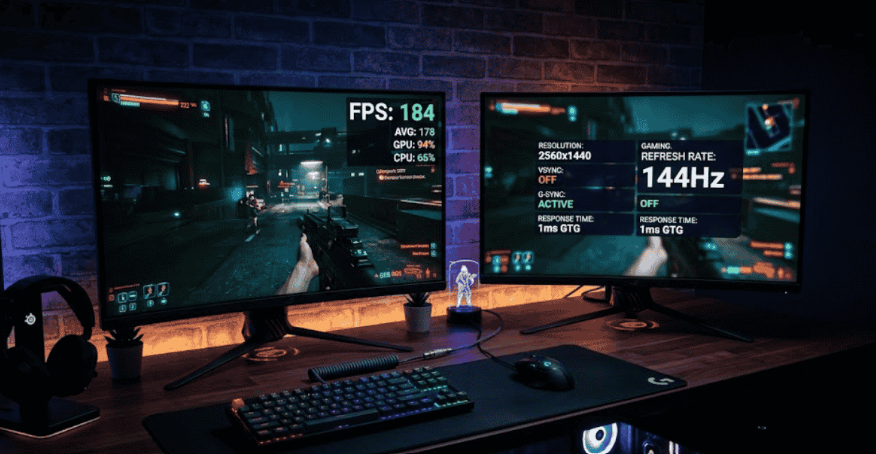
Two numbers dominate every gaming monitor conversation: FPS and Hz. Most people use them interchangeably. That's the mistake. FPS vs Hz describes two completely separate processes happening inside two completely separate pieces of hardware and when they don't work together, your gaming experience pays the price. Here's exactly what each one means, how they interact, and what that means for your setup.
⚡ Quick Summary: FPS vs Hz
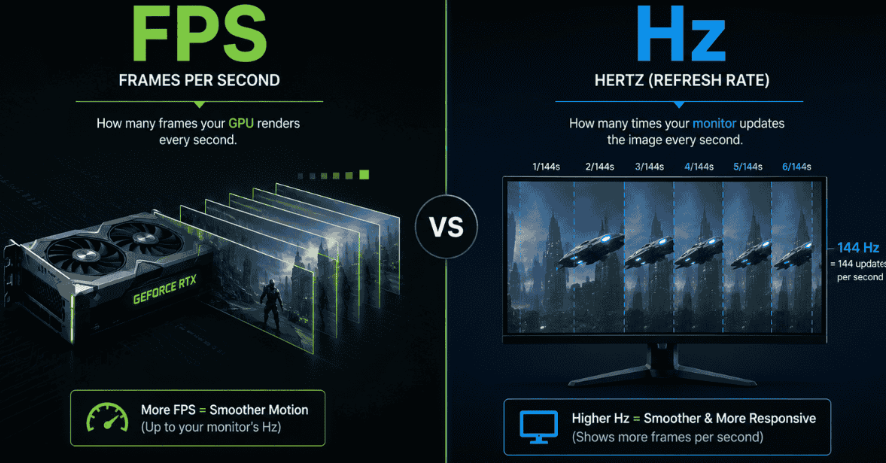
- FPS — Your GPU produces it: the number of frames rendered per second.
- Hz — Your monitor displays it: the number of frames shown per second.
Simple rule: FPS creates the frames, Hz displays them.
What Is FPS and What Does It Actually Mean?
Unlike the videos that show up to your eyes, your GPU draws different frames separately and very quickly. Frame rate refers to the total number of frames produced by the GPU in one second and is represented in terms of frames per second (FPS).
Imagine turning pages of a flip book manually. The faster the pages turn, the smoother the motion. Your computer can generate 30 still frames in 30 FPS and 144 images in 144 FPS. More FPS means better graphics.
Frame rate depends on GPU power, game complexity, resolution, and in‑game settings. Open‑world games need stronger GPUs. Want to know your exact frame rate potential? Use our free FPS Calculator to check what your hardware can deliver.
What Is Hz and Why Does Your Monitor's Refresh Rate Matter?
"Hz" represents how many refresh cycles occur each second by your monitor. For example, a 60 Hz monitor refreshes 60 times per second, while a 144 Hz monitor refreshes 144 times per second.
Your refresh rate is a hardware ceiling. Even if your GPU produces 300 frames per second, a 60 Hz monitor will only display 60 of them. FPS belongs to your GPU, Hz belongs to your monitor.
FPS vs Hz — The Core Difference Explained
FPS is what your computer produces. Hz is what your screen shows. Think of your GPU as a printing press creating images, while your monitor is a shutter opening and closing at fixed intervals. If the press runs faster than the shutter, frames are lost. If the shutter opens faster than the press, frames repeat and stutter.
When FPS and Hz are synchronized, gameplay is smooth. When they mismatch, you see screen tearing and input lag.
60 FPS vs 60 Hz: Are They Really the Same Thing?
Not exactly. 60 FPS means 60 frames generated by the GPU per second. 60 Hz means 60 refreshes per second by the monitor. When they match, each refresh cycle gets a new frame. But GPUs rarely output a perfectly stable frame rate, leading to tearing or stuttering when mismatched.
120 Hz vs 120 FPS: What Changes at Higher Numbers?
At 120 Hz, your monitor refreshes every 8.3 ms, cutting input lag and improving responsiveness compared to 60 Hz. Mouse movements and opponent tracking become smoother, and reaction times shorten.
To fully benefit, your GPU must sustain 120 FPS. Competitive titles like Valorant or CS:GO can achieve this easily, but AAA games at max settings may struggle.
Screen Tearing, VSync, and Why Mismatch Kills Your Experience
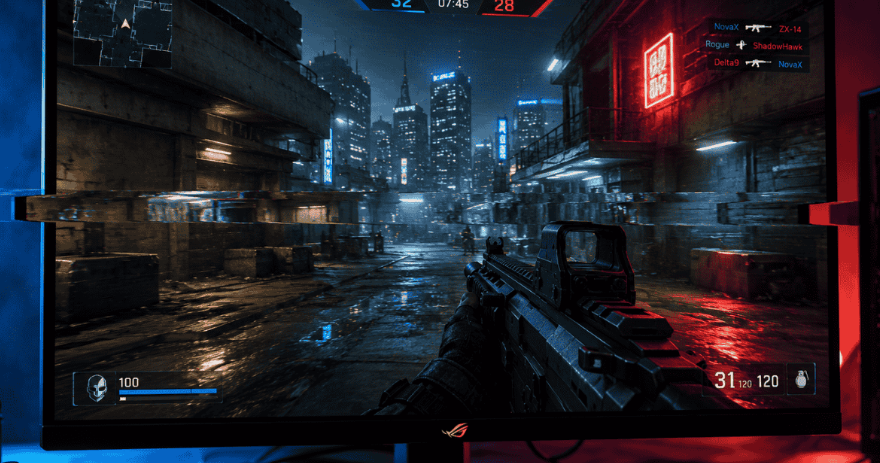
When FPS and Hz mismatch, three issues appear: screen tearing, stuttering, and input lag. Screen tearing happens when the monitor shows parts of two frames at once. VSync fixes tearing but adds input lag. G‑Sync and FreeSync dynamically sync monitor refresh rate to GPU output, solving both problems.
Gaming Hz vs FPS: What Should You Prioritize?
For fast‑paced online games (shooters, battle royales, fighting games), prioritize high Hz monitors (144 Hz or 240 Hz) to reduce input lag. For RPGs or open‑world games, GPU performance matters more for visuals.
Always balance Hz with your GPU’s actual FPS output. Buying a 240 Hz monitor while your GPU only produces 80 FPS wastes money. Use an FPS Calculator to check your GPU’s real performance before upgrading.
FPS vs Hz Monitor: How to Match Your Setup Correctly
Building a balanced setup around FPS vs Hz monitor compatibility doesn't have to be complicated. Follow these principles and you'll avoid the most common upgrade mistakes.
Rule One
Your Hz should generally be comparable to the frame rates being put out by your GPU. Your ideal monitor Hz is 144 Hz if your graphics card plays your most-loved games at 100–120 FPS without breaking a sweat. 240 Hz monitors make sense if you get close to 200+ FPS.
Rule Two
Always use adaptive sync if your monitor and GPU support it. Adaptive sync minimizes disparity between varying frame rates and the monitor refresh process. Regardless of how many frames your game renders, adaptive sync ensures a seamless experience without VSync delay. Check compatibility before purchasing: GeForce-compatible monitors use G-Sync, while AMD cards work with FreeSync.
Rule Three
Resolution impacts GPU workload. Rendering at 4K requires far more power than at 1080p or 1440p. For high refresh rates, 1080p or 1440p is more practical.
Comparison Table: FPS vs Hz Side-by-Side
| Feature | FPS (Frame Rate) | Hz (Refresh Rate) |
|---|---|---|
| What it measures | Frames your GPU produces per second | Times your monitor redraws per second |
| Controlled by | Graphics card (GPU) | Monitor hardware |
| Fixed or variable? | Variable — fluctuates with game load | Fixed — set by monitor spec |
| Higher = better? | Yes — smoother, more responsive | Yes — less input lag, sharper motion |
| Can exceed the other? | Yes — causes screen tearing | Yes — causes stuttering |
| Ideal scenario | FPS matches or slightly exceeds Hz | Hz matches sustained FPS output |
| Solution for mismatch | G-Sync / FreeSync / VSync | Adaptive sync technology |
conclusion
FPS vs Hz is one of those topics where once you get the relationship down, everything becomes clear as day. The GPU generates frames. The monitor shows them. When you combine two factors mentioned in such a way, your hardware is in perfect synchronization to give you the best possible performance your gear can provide you with. However, don't think that the answer lies in achieving the highest frame rate and refresh rate possible. Rather, you should find the balance in order to be able to enjoy playing your favorite video games smoothly. For instance, 144Hz combined with 130-160 FPS will provide you with better performance than using a 240Hz screen with 80 FPS and screen tearing. First, determine the refresh rate for your monitor and then choose the GPU accordingly so that it could provide you with the adequate frame rate. Enable FreeSync or G-Sync, adjust resolution if needed and the moment FPS vs Hz finally align in your setup, you'll feel the difference instantly.
FAQs
- Higher Hz reduces input lag and makes motion appear smoother, but only if your GPU can match it with sufficient FPS. A 240 Hz monitor showing 60 FPS offers minimal advantage over a 60 Hz screen.
- Yes — and when it is, screen tearing occurs. Enabling VSync, G-Sync, or FreeSync prevents tearing by syncing frame delivery to your monitor's refresh cycle.
- For casual single-player games, 60 Hz is acceptable. For competitive multiplayer gaming, 144 Hz is now considered the baseline standard for serious play.
- Hz doesn't increase your GPU's frame output, but it determines how many frames your screen can actually display. No matter how many frames your GPU produces, your monitor can only show up to its maximum Hz.
- 144 Hz is the sweet spot for most gamers — high enough to feel genuinely smooth, achievable for most mid-range GPUs in popular titles. 240 Hz suits dedicated competitive players with high-end hardware.
- They measure different things but are deeply connected. 120 Hz is your monitor's refresh ceiling. 120 FPS is your GPU's frame output. When both match, you get one fresh frame per refresh — the ideal pairing.
- VSync eliminates screen tearing but adds input lag because the GPU waits for the monitor's refresh cycle before sending a new frame. Adaptive sync solutions like G-Sync and FreeSync achieve tearing-free gameplay without that lag penalty.